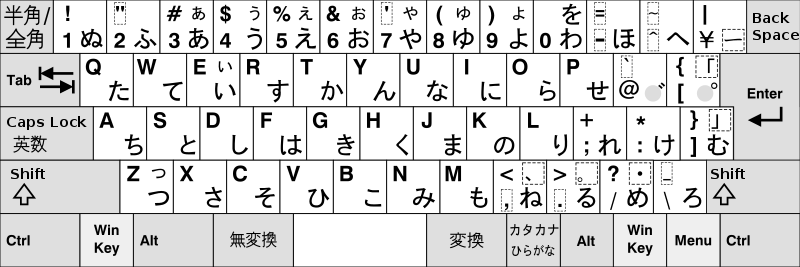
Instruction for Windows XP with Service Pack 2.
- Navigate to Start > Control Panel > Keyboard
- On the Hardware tab, click Properties (note that the current driver is probably "Standard 101/102-Key or Microsoft Natural PS/2 Keyboard")
- On the Driver tab, click Update Driver...
- The Hardware Update Wizard launches. When it asks if Windows can connect to Windows Update to search for software, select "No, not this time" and click Next
- Select "Install from a list or specific location (Advanced)" and click Next
- Select "Don't search. I will choose the driver to install" and click Next
- Uncheck "Show compatible hardware"
- Select "Japanese PS/2 Keyboard (106/109 Key)" from the manufacturer "(Standard keyboards)" and click Next
- Click Yes to continue with the installation when the warning about installing incompatible device drivers appears
- Click Yes to continue with the installation when the warning about replacing PS/2 mouse port drivers appears
- Click Finish and reboot
Instruction for Windows XP Pro
This assumes you are using a PS/2 Keyboard and Mouse. Other types will have to make a different selection from the list of standard keyboards.
- Go to Control Panel->Printers and Other Hardware->Keyboards
- Click on the "Hardware" tab and the keyboard connected to the system will show.
- Click on the "Properties" button and another window displays the keyboard properties
- Click on the "Driver" tab
- Click on the "Update Driver" button on the Driver screen
- The "Update Driver Wizard" will run.
- Click the "Install From a Specific Location" button (NOT AUTOMATIC) and the "Next" button.
- Click the "Don't seach. I will choose the driver to install" option and the "Next" button.
- On the next screen, uncheck the "Show compatible hardware" checkbox and choose the Japanese PS/2 Keyboard (106/109 Key) from the list of "(Standard keyboards)".
- Ignore warnings and reboot.